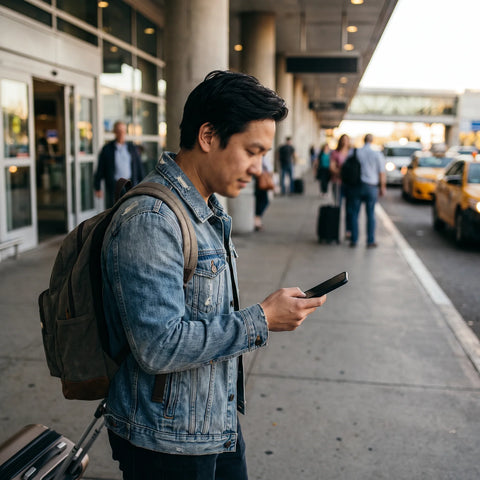
In short: Yes, you can share internet via hotspot with an eSIM exactly the same way as with a physical SIM: your phone creates a WiFi network and other devices connect to it. You just need your plan to allow tethering (almost all do) and to monitor your data usage, because a laptop or TV can consume your data very quickly.
You land at your destination, turn on your phone, and you already have internet with your eSIM. But your laptop is still silent, the kids' tablet is asking for WiFi, and your partner has run out of data. The solution is a hotspot: turning your phone into a small router for others to connect to. The good news is that sharing internet via hotspot with an eSIM is straightforward and works the same as always. Here, we tell you how to activate it, how much data it actually consumes, and what to do when it doesn't work, all without roaming and without stress.
What is a hotspot and why does an eSIM make no difference?
A hotspot (or "WiFi zone" or "personal hotspot") is a feature of your phone's operating system that shares your data connection with other devices. Your phone stops being just an internet client and acts as a router: it broadcasts its own WiFi network, with its own name and password, to which a laptop, tablet, another mobile, or a smart TV can connect.
Here's the key that confuses many people: the hotspot depends on the phone, not the card. It doesn't matter if your connection comes from a physical SIM or an eSIM downloaded via QR; for the operating system, it's just mobile data. That's why an eSIM shares via hotspot exactly the same way as any traditional SIM. If you're still not clear on how this technology differs, first take a look at what an eSIM is and how it works and come back; the rest will make much more sense.
The only real condition is that your plan allows tethering (the technical term for data sharing). Most travel eSIMs allow it without a problem. What you should check before buying is the fine print of "unlimited" plans, because some cap or limit hotspot usage past a certain volume to prevent abuse, within their fair use policy.
How to activate hotspot with an eSIM step by step
Activating it takes less than a minute. The process is identical on iPhone and Android, although the menus may have different names. The idea is always the same: you turn on the WiFi zone, make sure it's pulling from the correct eSIM, and connect the other device with the password displayed on the screen.
- Check that your eSIM's mobile data is activated and has coverage. Without data, there's nothing to share.
- On iPhone: Settings > Personal Hotspot > turn on "Allow Others to Join". On Android: Settings > Connections (or Networks) > Hotspot and tethering > WiFi Hotspot.
- If you have two lines (dual SIM), verify that the hotspot uses the travel eSIM and not your usual Spanish line, which would be on roaming or directly without data.
- Note or copy the network name and password, and connect from the other device just like any WiFi.
- Change the default password if you plan to share in crowded places like an airport or a hotel.
A detail that saves a lot of headaches: always verify which line powers the hotspot when you have dual SIM. It's one of the most common mistakes. If your phone mistakenly uses your Spanish SIM without roaming, the hotspot "works" but doesn't browse, and you go crazy looking for the problem where it isn't.

Sharing with a laptop, tablet, or smart TV: not everything consumes the same
The hotspot isn't just for giving your companion's phone a boost. You can connect your laptop to work from a cafe, your tablet for the kids to watch cartoons in the car, or even the smart TV of your rental apartment that's without WiFi. Each device connects to the network your phone creates as if it were a home router.
However, there are three ways to share, and they don't consume or cost the same. Choosing wisely makes the difference between having battery left at night or running out in the afternoon.
| Method | Devices at once | Battery drain | Ideal for |
|---|---|---|---|
| WiFi (portable hotspot) | Several | High | Laptop, tablet, and TV, or multiple people |
| Bluetooth | 1, and close by | Low | Occasional and light use (email, messaging) |
| USB cable | 1 | None: charges the phone | Laptop at a desk, long sessions |
Practical rule: if you're going to plug in your laptop for a long time, do it via USB cable. You share data and at the same time your phone charges, so you don't end up with your phone at 4% just when you need it. For tablets or TVs, the WiFi zone is convenient because it reaches several devices and at a certain distance. Bluetooth is for very occasional fixes.
How much data hotspot sharing actually consumes
Here's the trap that empties data plans without warning: when you share, connected devices consume your plan, and they almost always consume more than a phone. A laptop downloads heavy updates, syncs the cloud in the background, and loads full desktop versions of each website. A smart TV streaming in HD can consume around 3 GB per hour, and much more in 4K.
To get a quick idea and calculate with a margin, this indicative table serves as a compass. These are approximate typical consumption figures, not exact promises: they depend on quality, the app, and your settings.
| Connected device usage | Approximate consumption | Comment |
|---|---|---|
| Laptop work (email, web, chat) | About 1-2 GB per day | Manageable if you control downloads |
| Work video call (Zoom/Teams) | Hundreds of MB per hour | Increases significantly if you activate HD camera |
| Music streaming | Low | Very manageable even daily |
| HD video streaming (TV) | Around 3 GB per hour | Empties a small plan in an afternoon |
Moral of the story: if your plan will depend on the hotspot, buy plenty of GB. For a business trip with a laptop, count at least a couple of GB per day. For binge-watching series on the apartment TV, it's better to use the accommodation's WiFi if available and save your eSIM for important things. If you want to squeeze every megabyte, we have a whole guide of tips to save data with your travel eSIM that will come in handy.
What almost no one tells you about hotspots
Tutorials stop at "press the button." These are the less obvious details that make the difference between a hotspot that lasts all day and one that leaves you stranded:
- The silent data thieves. Before connecting your laptop, disable automatic updates for Windows/macOS and photo syncing to the cloud. These are the two things that can empty a plan in an afternoon without you doing anything. On the laptop, mark the hotspot network as a "metered connection" so the system limits itself.
- Heat is the enemy. Keeping the WiFi zone on heats up your phone and drastically increases battery consumption. If you notice it getting warm, turn it off when not in use and keep it uncovered, never inside a closed pocket in the sun. If you're concerned about battery life, see how this affects it in the guide on how much battery an eSIM consumes.
- Unlimited is not always unlimited for hotspots. Many "unlimited" plans reserve unlimited usage for the phone itself and apply a cap or reduced speed to tethering. Read this before buying if your intention is to share a lot.
- Change the name and password. In a crowded airport, leaving the hotspot with the default name and a weak password is an invitation for others to connect. Give it a discreet name and a strong password.
- USB is your wild card. When the hotspot WiFi is acting up due to interference (hotels with thousands of networks), connecting the laptop via cable is usually more stable and also charges the phone.
Hotspot not working: quick solutions
An eSIM hotspot not starting up is more common than it seems, and it can almost always be fixed with a few taps. A common cause, again, is that the phone is using the wrong line. Review this list from top to bottom:
- Data source: confirm that the hotspot is using the active travel eSIM, not your other line.
- Mobile data and data roaming: both must be enabled on the eSIM ("data roaming" on the eSIM is normal and necessary, don't worry).
- Fair use: if it's an unlimited plan, tethering might be limited after a certain volume.
- Restart: turning the phone off and on and reactivating the hotspot solves most cases.
- APN: on some Android phones, you need to manually enter the plan's APN. If you suspect this, here's how to configure the eSIM's APN without getting confused.
If after all this it still doesn't work, contact your eSIM provider's support in Spanish: in a chat, they can quickly detect if the plan blocks the hotspot or if something needs to be configured. And for more common issues when sharing away from home, keep our guide on mobile hotspot abroad with an eSIM handy, which covers more specific cases.

Alternatives to the hotspot: when it pays off
The hotspot is convenient, but it drains the battery and your plan. If several people are traveling and usage is intense, sometimes it's more cost-effective for each person to have their own eSIM with a small plan, instead of straining a single phone that ends up hot and out of battery by midday. This spreads the cost and avoids the drama of "who left the phone dead."
Another option is a portable WiFi (pocket WiFi) if you are a large group and want a stable connection all day for many devices, although it involves carrying and returning another gadget. We compare the two philosophies in depth in eSIM versus portable WiFi, in case you're unsure which fits your trip.
For a solo traveler or a couple with moderate use, the hotspot from the eSIM is almost always the simplest and cheapest. If your destination is Europe or the United States, take a look at the eSIM for Europe or the eSIM for the United States and choose a plan with plenty of GB to share without surprises.
Frequently Asked Questions
Can you share internet via hotspot with an eSIM?
Yes, it works just like with a physical SIM: your phone creates a WiFi network and other devices connect. You only need your plan to allow tethering, which is common with travel eSIMs. For unlimited plans, check that the hotspot isn't capped after a certain volume due to fair use policy.
How do I share internet from my phone to my computer with an eSIM?
Activate the eSIM's data, go to the WiFi hotspot or personal hotspot function, and select the eSIM as the source. Connect your laptop to that WiFi network using the password displayed, or use a USB cable to share and charge your phone at the same time. It's ready in less than a minute.
Why isn't my eSIM hotspot working?
The most common reason is that the hotspot is using the wrong line on a dual SIM phone. Check that the data source is the active travel eSIM, that mobile data and data roaming are enabled, restart your phone, and on Android, check the APN. The provider's support can confirm if the plan blocks tethering.
Does sharing via hotspot drain more battery?
Yes, quite a lot: keeping the WiFi zone active consumes a lot of power and heats up the phone. For occasional use and a single device, Bluetooth consumes less. If you're connecting a laptop for a long time, do it via USB cable: it shares data and charges the phone at the same time, so you don't run out of battery in the afternoon.
Can I connect my apartment's smart TV to my eSIM?
Yes, the TV connects to your WiFi zone like any other device. Keep in mind that HD streaming consumes a lot of data (around several GB per hour), so it's only a good idea if your plan has plenty of GB. For binge-watching series, it's better to use the accommodation's WiFi if available.
How many devices can I connect to the hotspot at once?
Via WiFi, your phone supports multiple devices connected simultaneously (the exact number depends on the model, but it's usually enough for a family). Be aware: the more devices and the more data they use, the faster your plan will deplete and the more your phone will heat up. Distribute usage wisely.
Do I consume my eSIM data when someone uses my hotspot?
Yes. Everything downloaded by connected devices comes from your eSIM data plan, not theirs. That's why it's advisable to inform anyone connecting not to watch 4K video or accidentally update their laptop. A generous GB plan avoids surprises when sharing.