In short: to save mobile data with an eSIM, disable automatic app updates, reduce video quality to 480p, download maps and music via Wi-Fi before you leave, and activate your device's data saving mode. With these adjustments, a small plan can last twice as long without you noticing the difference in your daily travel.
If you purchase a data plan just for your trip, every megabyte counts. The good news is that with four well-made adjustments, your eSIM can last twice as long: most of the data usage goes to things you don't even see. Here are 12 specific tricks to save mobile data without losing connection, ordered by their impact.
Why your data is used without you noticing
Most invisible consumption comes from three sources: apps that update automatically, cloud backups, and auto-playing videos. On a normal travel day, this can account for 300 to 800 MB that you never asked for. Controlling these three areas will already save you half of your data usage.
The classic mistake is thinking that "I hardly use my phone" when in reality the phone works on its own: downloading emails, refreshing weather, syncing photos, and preloading feed videos. Before touching anything, go to your phone's data settings and see which app tops the consumption. It will almost always surprise you, and that's your first saving. If you are going to a specific country, calculating the right portion also helps: think about how many hours of maps, messaging, and some social media you will need per day and add a margin, instead of buying "the biggest plan just in case."

Stop background updates and synchronization
Direct answer: disable app updates over mobile data, set photo backups to Wi-Fi only, and activate the system's data saver. With these three actions, you curb most of the consumption that occurs without you looking at the screen, and you'll notice that your eSIM lasts many more days with the same amount of GB.
Specifically: in the app store, disable automatic updates over data; in your gallery (Google Photos, iCloud), set backup to "Wi-Fi only"; and review background app refresh app by app, leaving it active only for messaging. WhatsApp and Telegram consume very little data for text, so you can use them freely; if you don't have your line ready yet, here's how to install your eSIM in a couple of minutes before leaving home. Email in "manual" mode or checking every hour, instead of "push," also cuts down on consumption without you realizing it.
Video and social media: the big data consumer
Video is, by far, what burns through the most data. A high-definition video can consume more than 1 GB per hour, so this is where you save the most. The rule is simple: lower playback quality and disable autoplay.
- YouTube: set quality to 480p or 360p when using mobile data.
- Instagram and TikTok: activate "data saver" mode in settings; this reduces video preloading.
- Netflix and streaming: download your shows at the hotel via Wi-Fi and watch them offline.
- Spotify: set audio quality to "normal" or download playlists via Wi-Fi.
Another common drain is long video calls: if you can, switch to audio-only. And be careful with tethering: when you use your eSIM as a hotspot for your laptop, the computer preloads pages and updates programs at your expense, so limit this use to what's essential. If you also plan to connect via airport or hotel Wi-Fi for heavy tasks, protect that data with a VPN; the eSIM, VPN, and travel privacy guide provides step-by-step instructions.
Maps and navigation without spending data
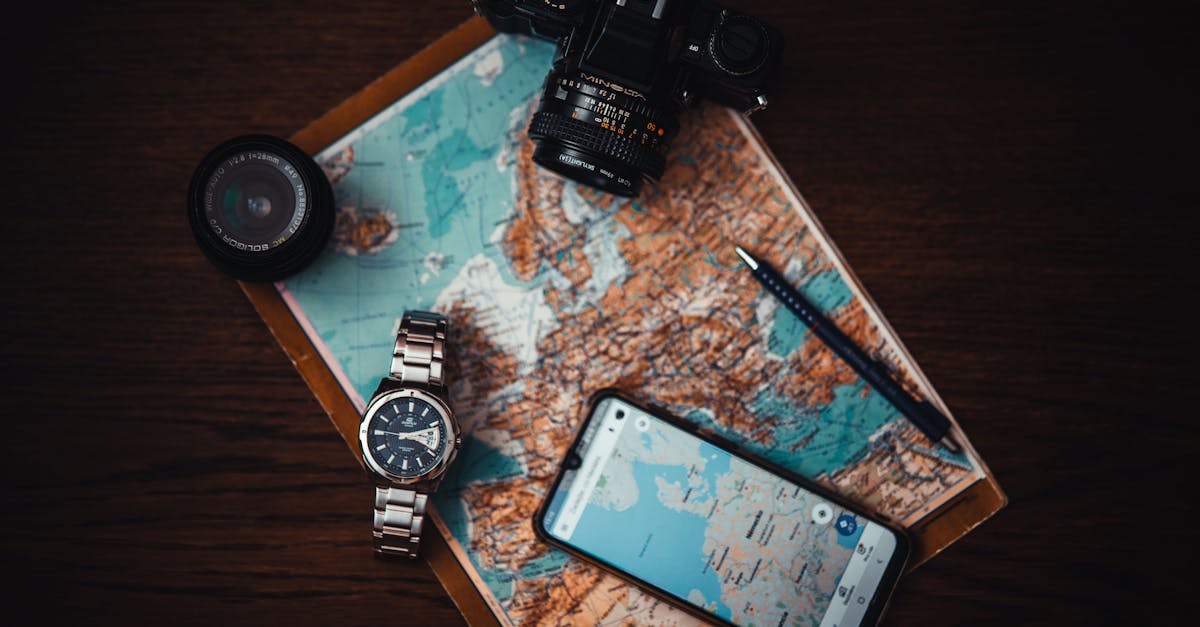
Getting lost in a new city wastes data unnecessarily: every time you recalculate a route, the map downloads images. The solution is to download the map offline before you leave. In Google Maps, search for the city, tap its name, and choose "Download offline map"; it even works in airplane mode.
With an offline map, you maintain street search, walking and driving directions, and points of interest without using a single MB. Download them using your accommodation's Wi-Fi the night before. For long road trips, apps like Maps.me or Organic Maps are entirely offline and lightweight. This trick alone adds extra days to a small plan and is essential for routes with irregular coverage: if you're doing the full Machu Picchu route, download the section at your Cusco hotel the night before, because in the valley and at some points along the way, the signal disappears without warning.
Traveler's tip: download your destination map the night before you fly, using your home Wi-Fi. You arrive with full navigation and spend zero data moving around the city map.
Smart Wi-Fi use (and when NOT to use it)
Free Wi-Fi seems like a savior, but it's wise to use it judiciously. Take advantage of it for heavy tasks (uploading photos, video calls, downloading series and maps) and avoid entering sensitive data on open networks at airports or cafes without a VPN. Many apps also wait for Wi-Fi to download huge updates: let them do it there and not with your eSIM plan.
An important nuance: public Wi-Fi is usually slow and insecure, and your eSIM provides its own stable connection wherever you go. That's why the winning strategy isn't "all Wi-Fi," but rather Wi-Fi for heavy tasks, eSIM for everyday use. This way, you maintain control and don't depend on passwords or whether the hotel network is working. If you're debating between relying on public Wi-Fi, using your regular operator's data, or carrying your own connection, this comparison between eSIM and roaming helps you decide which is best for your trip.
Operating system settings
Every phone has a button that activates several data-saving features at once. It's worth spending two minutes on it as soon as you land.
- iPhone: Settings > Mobile Data > Low Data Mode. This slows down background updates and automatically reduces streaming quality.
- Android: Settings > Network > Data Saver. This blocks background data usage except for the apps you choose.
- Both: disable "Wi-Fi Assist" (iPhone) or automatic switching to data when Wi-Fi is slow; this prevents you from using your plan without realizing it.
It's also advisable to disable autoplay videos in your browser and on social media, and close map or camera apps that leave GPS running. With data saver mode activated from the start, your eSIM will last significantly longer. And remember: activating it takes seconds, almost always before the plane touches down.
How much data each activity consumes
To plan your data usage, it's helpful to have a realistic reference for how much data each typical activity consumes per hour. These values are estimates, but they give you a clear idea of where to curb usage:
| Activity | Approximate Consumption | Possible Savings |
|---|---|---|
| HD Video (1 hour) | 1-1.5 GB | Reduce to 480p: -60% |
| 480p Video (1 hour) | 0.4-0.6 GB | Download offline |
| Social Media (1 hour) | 150-350 MB | Data Saver Mode: -40% |
| Music Streaming (1 hour) | 40-100 MB | Download via Wi-Fi |
| Maps Navigation (1 hour) | 50-100 MB | Offline map: almost 0 |
| WhatsApp Text (day) | 10-30 MB | Already minimal |
| Video Call (1 hour) | 0.5-1 GB | Audio-only: -80% |
As you can see, tackling video and video calls is where most of the savings lie. If you control these two areas and navigate with offline maps, a small plan can cover an entire trip. If you want more tips like these applied to a specific trip, we have another guide focused on how to save data with an eSIM while traveling with additional examples.
Myths and what almost no one tells you
In addition to technical adjustments, there are a handful of ideas circulating among travelers that make you spend more than necessary, or vice versa, fall short due to excessive caution. Here they are without embellishment.
"Roaming and eSIM are almost the same, so it doesn't matter"
They are not the same, and confusing them can be costly. Roaming means your home operator lets you use your data abroad with surcharges (sometimes very high outside the EU); an eSIM is a local or regional data line that you buy separately, without affecting your contract. If you're unclear where one begins and the other ends, this guide on what data roaming is clarifies it in five minutes, saving you from unpleasant surprises on your bill when you return.
"Accommodation Wi-Fi is always enough, no need to save"
It heavily depends on where you are. In a European capital, probably yes. But in areas with long distances and low density, things change: if you're driving through Australia or New Zealand, you'll spend entire stretches without Wi-Fi or any coverage, and that's where offline maps and data saving stop being a luxury and become what gets you out of a bind. Don't assume you "will find Wi-Fi": in many places, simply put, there isn't any.
"If I run out of data halfway through my trip, I can't do anything else"
Not necessarily. Many eSIMs can be topped up directly from the app, without having to find a store or change numbers; for example, with eSIM Spain plans, you can extend your data on the go if you see you're running low. That said, don't buy too much "just in case": for a short trip without work involved, an adjusted plan plus these tricks is usually enough, and topping up when you actually need it is cheaper than paying for a buffer you won't use.
"Closing apps completely saves data"
It's the opposite of what many people believe: forcing an app to close and then reopening it from scratch sometimes consumes more data (reloading images, checking session, syncing) than leaving it in the background with automatic updates turned off. What really saves data is not aggressively closing apps, but controlling what can use data in the background, which is exactly what we discussed in the settings above.
Frequently asked questions
How to save mobile data without stopping app usage?
Activate the system's data saver mode, disable automatic app updates over data, lower video quality to 480p, and download maps and music via Wi-Fi. With these steps, you can continue using everything normally and cut more than half of your daily data consumption.
Which app consumes the most mobile data?
Video, without a doubt: YouTube, TikTok, Instagram Reels, and Netflix. One hour of high-definition video can exceed 1 GB. After that come video calls and photo backups to the cloud. Controlling these three things will already show you savings.
Does data get used when my phone is in my pocket?
Yes, even if you don't touch it. Your phone syncs email, updates weather, refreshes social media, and preloads content in the background. That's why it's advisable to disable background app refresh for all apps except the messaging you truly need.
Do offline maps really work without data?
Yes. Once you've downloaded the city map via Wi-Fi, walking and driving navigation, street search, and points of interest work offline, even in airplane mode. It's one of the biggest data-saving tricks for a city trip.
Is it worth buying more GB or better to save?
It depends on your trip. If you're going to make work video calls or do a lot of streaming, buy a generous plan. For normal tourism, with these adjustments, a medium plan is usually enough. Many eSIMs are rechargeable, so you can start with a tight plan and top up if you run low.
How much data does Netflix consume per hour during a trip?
In high quality, one hour of Netflix can consume around 1-1.5 GB, the same as any HD video. If you download episodes via Wi-Fi the night before at your hotel and watch them offline on the plane, bus, or train, your eSIM data consumption is zero. This is by far the adjustment that saves you the most data if you travel with pending series.
Does airplane mode with Wi-Fi activated save eSIM data?
Yes, and it's a little-known trick: you can put your phone in airplane mode and then reactivate only Wi-Fi. This way, your phone won't touch your data plan at all, even if you have notifications, apps, or the system itself trying to connect. Useful at the hotel or anywhere with decent Wi-Fi if you want to give your eSIM a complete break.
Conclusion
Saving data isn't about giving up anything; it's about eliminating the invisible data consumption on your phone: HD video, autoplay, cloud backups, and background updates. With the adjustments in this guide and offline maps, a modest plan can cover your entire trip. Start your trip with a well-sized eSIM and these applied tricks, and forget about running out of data halfway through.