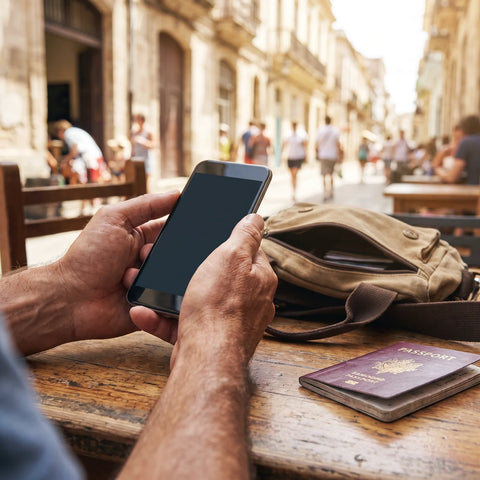
How to disable roaming on your phone
To disable roaming, go to your phone's Settings, find the mobile network or mobile data section, and turn off the switch that says "Data Roaming" or "Roaming." On iPhone, it's under Settings > Cellular; on Android, under Settings > Mobile networks. The change is immediate and does not require restarting your phone.
This action cuts off only one channel: the one that allows your home operator to let you use the internet through a foreign network and, almost always, charge you for that privilege. It does not affect Wi-Fi or, unless you disable it separately, calls and SMS over the local network. It's a split-second decision that can prevent a charge that takes weeks to appear on your statement.
Why the 'R' appears in your phone's signal
The letter "R" you see next to your signal bars (sometimes as an icon, sometimes as text) means exactly that: roaming. Your phone is telling you that it is no longer connected to your contracted operator's network, but to the network of a different operator, usually because you crossed a border.
This symbol is not an error or a signal malfunction. It's useful information: it tells you that if you have data roaming activated, any megabyte you consume from that moment on goes through a commercial agreement between two operators, and that agreement is almost never free for you. Seeing it appear right after landing is a sign that it's a good idea to check your data settings before opening any app.
On some phones, the 'R' appears even when in airplane mode with Wi-Fi activated, simply because the SIM is still registered on a foreign network in the background. This is no cause for alarm: it simply confirms which physical network the device is registered on at that moment.
What happens if you disable data roaming
By turning off data roaming, your phone will no longer be able to use the internet via mobile networks outside your home country. You will still receive calls and messages if voice roaming remains active (they are separate switches on most devices), but WhatsApp, maps, email, and any app that relies on mobile data will stop working as soon as you move away from Wi-Fi.
This does not "break" your phone or cancel your line: it is completely reversible, and you can reactivate it from the same menu at any time. What does change is how you use your phone while traveling: you become dependent on hotel, airport, or cafe Wi-Fi, with all that entails in terms of speed and availability.
Disabling roaming is not "cutting yourself off": it's simply closing the door through which your operator could bill you for foreign data, and letting you consciously decide how you want to access the internet during your trip.
Steps to disable roaming on iPhone
On an iPhone, the path is the same regardless of the model, although it may vary slightly between iOS versions:
- Open Settings.
- Tap Cellular (on some models with two lines, it appears as "Cellular" followed by your plan name).
- Scroll down to Cellular Data Options.
- Turn off the Data Roaming switch.
If your iPhone has two active lines (a physical SIM and an eSIM, for example), make sure you are in the correct plan before tapping the switch: each line has its own roaming setting, independent of the other. This is an easy detail to overlook and the most frequent reason why someone swears they "already turned it off" and roaming is still active on the line they are actually using for data.

Steps to disable roaming on Android
On Android, the menu varies slightly depending on the brand (Samsung, Xiaomi, Motorola, Google Pixel), but the general path is this:
- Open Settings.
- Go to Network & Internet (or "Connections", depending on the brand).
- Tap Mobile Networks or the name of your SIM/eSIM.
- Look for Data roaming or "Roaming" and turn it off.
As with iPhone, if you have two SIMs (physical + eSIM, or two physical SIMs in a dual-SIM phone), roaming is configured separately for each one. If you disabled roaming on the wrong line, you will still be exposed to charges even if the phone shows the setting as "off" on the other line.
iPhone vs. Android: where to find the switch
To avoid wasting time searching for the exact menu at the airport, here's a summarized path for each system:
| System | Path in Settings | Switch name | Applies per line (SIM/eSIM) |
|---|---|---|---|
| iOS (iPhone) | Settings > Cellular > Cellular Data Options | Data Roaming | Yes, one per line |
| Android (Samsung) | Settings > Connections > Mobile networks | Data roaming | Yes, one per line |
| Android (Pixel / stock) | Settings > Network & Internet > SIMs | Roaming | Yes, one per line |
| Android (Xiaomi / MIUI) | Settings > SIM cards & mobile networks | Data roaming | Yes, one per line |
A real-world example: traveling without roaming and without running out of data
Imagine a one-week trip from Mexico City to Bogota. Before boarding the plane, you decide to disable data roaming on your phone because you don't want your Mexican operator to charge you for using the internet in Colombia. So far, so good: you avoid the charge.
The problem arises upon landing. You need to order a car via an app, send your location to the person picking you up, and confirm the hotel address, and you won't have Wi-Fi until you arrive. With roaming turned off, your phone simply has no internet: it's not slow, it's that there's no data signal at all until you find a Wi-Fi network.
It's precisely at this moment that having a data eSIM installed beforehand makes all the difference: you arrive, activate it (or it was already active before you left), and your phone uses a local data network in Colombia without going through your Mexican operator's roaming. You still avoid roaming charges, but you also don't run out of internet when you need it most: upon getting off the plane, in an unfamiliar country.
What to do instead of activating roaming
Turning off roaming solves the billing problem, but it creates a new one: how to get internet at your destination without relying on third-party Wi-Fi. There are three common approaches, and one of them is usually the simplest to set up before leaving home.
The first is to buy a physical SIM upon arrival, which involves finding a store, waiting in line, and, in several countries, presenting identification. The second is to rely solely on public Wi-Fi, with the coverage and security limitations that entails. The third is to install a data eSIM, a digital chip that is downloaded to your phone before your trip and uses a local or regional network without involving your home operator or roaming.
The eSIM is installed days before traveling (there's no need to wait until you're at your destination), and on compatible phones, the entire process takes just a few minutes. If you're unsure whether your device supports it, it's best to check which phones are eSIM compatible before purchasing one.

International roaming vs. data eSIM
Neither option is "bad": each solves the problem of having internet outside your country, but with different mechanisms.
| Aspect | Roaming from your home operator | Data eSIM for your destination |
|---|---|---|
| Who charges you | Your home operator, on your usual bill or balance | The eSIM provider, with a defined data plan before traveling |
| When you activate it | Activates automatically when a foreign network is detected, unless you disable it | You install and activate it when you decide, even before leaving home |
| Your original number | Remains, along with calls and SMS | Remains: the eSIM is only for data, your primary line stays the same |
| Installation | Requires nothing, it comes with your physical SIM | Requires a compatible phone and internet connection for installation |
If you want to understand this comparison in more detail, including cases where roaming might be convenient, there's a complete guide on eSIM vs. roaming. And if you're wondering about eSIM versus a traditional physical SIM, there's another specific comparison on eSIM vs. physical SIM.
Common mistakes when disabling roaming
The most common one we've already mentioned: disabling roaming on the wrong line when the phone has two active SIMs. The second is confusing "data roaming" with "airplane mode": airplane mode cuts off all connections, including Wi-Fi, while turning off only data roaming leaves local network calls and Wi-Fi intact.
A practical detail that almost no one checks: if your phone installs a major operating system update while you are traveling, some of these updates restore certain network settings to their factory defaults, and data roaming may be re-enabled without any warning. If you accepted an update during your trip, it's worth going back into Settings and confirming that the switch is still off, instead of assuming the configuration remained as you left it before you departed.
The third mistake is disabling roaming thinking that this solves the problem at its root, when in reality it only avoids the charge: if no data alternative is prepared for the destination, such as an eSIM, the result is being without internet precisely when it is most needed upon arriving at an unfamiliar place.
Frequently asked questions
How can I disable roaming on any phone?
Go to Settings, find the mobile data or mobile networks section, and turn off the "data roaming" or "roaming" switch. The exact path varies between iPhone and Android, but the concept is the same on all devices.
Are data roaming and call roaming the same?
No. On most phones, they are independent switches: you can disable data roaming (internet) and leave voice roaming active, to continue receiving calls and SMS even if you don't have mobile internet at your destination.
Am I charged for having roaming activated if I don't use it?
It depends on your home operator's plan: some only charge if you actually consume data while roaming, while others apply additional charges simply for connecting to a foreign network. Check your plan's terms and conditions before traveling; PuraSIM cannot confirm external operator prices because it does not manage them.
Do I need to disable roaming if I already have a data eSIM?
It's recommended. Although your eSIM handles data traffic, leaving your original line's roaming activated as a backup might cause your phone to use that network instead of the eSIM at certain times, still exposing you to charges from your home operator.
Does airplane mode also disable roaming?
Airplane mode cuts off all network connections, including roaming, but also Wi-Fi and calls. It is not a substitute for turning off only roaming: it is a more drastic measure that leaves the phone completely disconnected until you turn it off.
Why does my phone lose signal if I disable roaming in another country?
If you disabled both data and voice roaming, your phone won't be able to connect to any mobile network outside your country, even if it still shows Wi-Fi signal bars if you're connected to Wi-Fi. This is expected behavior, not a device malfunction.
Can I disable roaming only for data and leave calls active?
Yes, on most modern phones, data roaming and voice roaming are controlled separately, so you can turn off only data roaming and still receive calls and text messages via the local network at your destination.
Conclusion
Disabling roaming is a two-tap adjustment that prevents an unexpected charge on your next bill, but by itself it doesn't give you internet at your destination: it only closes one door. The question that really needs to be answered before traveling isn't just "how do I turn off roaming?", but "what will I replace it with while I'm away?".
A data eSIM addresses precisely that: it's installed before your trip, works in over 200 destinations, and doesn't rely on you finding Wi-Fi upon landing. Support, if anything is unclear during installation, is available 24/7 in all languages via email and WhatsApp, and once purchased, you have 180 days to activate it, so there's no rush to decide the exact day of your trip. If you want to start with a comprehensive guide before taking the first step, this definitive eSIM guide for travel is a good starting point, and for step-by-step installation, there's the guide on how to install an eSIM. When you want to see the available options for your next destination, you can check the international eSIM collection.