What is an eSIM and how does it work on the iPhone?
An eSIM is a digital chip soldered to the iPhone's board. Instead of opening the tray and inserting a plastic card, you download the data plan with a QR code or a link, and within minutes your phone is connected to a network in the country you are in. It doesn't replace your usual line: it coexists with it.
The difference from a physical SIM is not just the size. An eSIM can be installed without opening the phone, without waiting for a mail delivery, and without going to a physical store to wait in line. The profile is saved inside the iPhone and activated when you decide, not when the operator processes it.
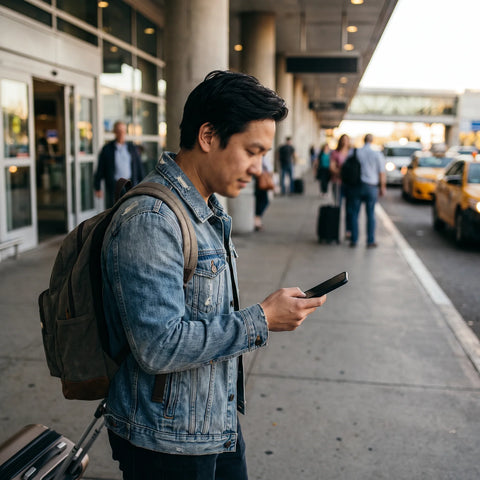
For the average user, the eSIM changes one specific thing: when you travel, instead of looking for a SIM stand at the airport or relying on your usual operator's roaming, you install a local (or regional) data plan before boarding the plane, and activate it upon landing. Your cell phone number and WhatsApp continue to work with your physical line, while mobile data runs through the eSIM.
Apple introduced the eSIM in the iPhone in 2018, and since then has been bringing it to more markets and models. Today it is a mature technology: it is not an experiment or something only used by tech experts.
Which iPhone models support eSIM?
Compatibility depends on the model and, in some cases, the country where the phone was purchased. The following table summarizes the models that came with eSIM support and from which year.
| iPhone Model | Launch Year | Has eSIM? |
|---|---|---|
| iPhone XS, XS Max, XR | 2018 | Yes (first models with eSIM) |
| iPhone 11, 11 Pro, 11 Pro Max | 2019 | Yes |
| iPhone SE (2nd generation) | 2020 | Yes |
| iPhone 12 (all variants) | 2020 | Yes |
| iPhone 13 (all variants) | 2021 | Yes |
| iPhone SE (3rd generation) | 2022 | Yes |
| iPhone 14 (all variants) | 2022 | Yes (models sold in the US no longer have a physical tray) |
| iPhone 15 and 16 (all variants) | 2023-2024 | Yes |
| iPhones older than XS (8, 7, 6, SE 1st gen.) | 2017 or earlier | No |
With iPhone XS or later, you generally don't have to worry about hardware compatibility. What is worth checking is whether your iPhone is locked to a specific carrier, because that can limit (or completely block) the installation of eSIMs from other providers. You can review in more detail what an eSIM is and how it differs from a traditional SIM in the guide on what an eSIM is.
How do I know if my iPhone has an eSIM or only a physical SIM?
There are two quick ways to confirm this without guessing by model. The first is to go to Settings → Cellular: if you see the "Add eSIM" or "Convert to eSIM" option, your phone is compatible. The second is to dial *#06# from the phone's keypad; if an "EID" (a long identification number) appears in addition to the IMEI, your iPhone supports eSIM.
If your iPhone is a compatible model but was purchased with a carrier that locked it ("unlocked" is different from "unlocked" in some contexts), that restriction may also apply to the eSIM, not just the physical card. Before buying a plan, confirm with your current carrier if the device is unlocked. If you have doubts about which other phones (not just iPhone) are compatible, you can check the list in eSIM compatible phones.

How to activate an eSIM on iPhone, step by step?
The process is the same no matter which eSIM provider you choose, although the screen design may vary slightly depending on the iOS version. Here are the general steps:
- Open Settings → Cellular → Add eSIM (in newer iOS versions it may be called "Add Data Plan").
- Choose "Use QR Code" and point your iPhone's camera at the QR code provided by the provider (it arrives by email or within an app).
- Confirm the installation. The iPhone downloads the profile in seconds, as long as you have Wi-Fi or data available at that moment.
- Choose a name for the new line (for example, "Travel Data") to differentiate it from your main line.
- Go to Settings → Cellular and activate the eSIM as a data line, leaving your physical line active for calls and messages if you prefer.
- Check that Data Roaming is activated within the eSIM line: without that switch turned on, the phone will not browse even if the profile is installed.
The entire process, when the internet connection is stable, takes a few minutes. If you prefer a more detailed guide with screenshots for each iOS version, you can find it in how to activate an eSIM on iPhone. If, on the other hand, you are looking to install the profile from scratch step by step with different methods (QR, direct link, app), check how to install an eSIM.
eSIM vs. roaming vs. physical SIM: which is better for travel?
There is no single best option in all cases: it depends on how long you travel, how many countries you visit, and how important it is to keep your local number active while you're away.
| Option | Installation | Your number remains active | Best for |
|---|---|---|---|
| Travel eSIM | Digital, before or upon arrival, no need to go to a store | Yes, in parallel (dual SIM) | Short or long trips where you want to control data spending |
| Local operator roaming | No setup required, already active | Yes, it's the same line | Very short trips where you don't want to configure anything |
| Local physical SIM | Must be bought and physically swapped in the destination country | No, while the local SIM is inserted | Long stays in a single country, with an unlocked phone |
eSIM often wins when you visit several countries on the same trip, because you can have different profiles saved and activate the appropriate one without physically touching the phone. If you want to delve deeper into this comparison with more use cases, the guide eSIM vs. roaming explains it in more detail, and eSIM vs. physical SIM specifically compares the issue of changing cards.
If you bought your iPhone in the United States after September 2022 (iPhone 14 onwards), it almost certainly does not have a physical SIM card tray: on that device, eSIM is not an option, it is the only way to have a second line.
A real example: arriving in another country and using your phone from the airport
To make it less abstract, let's look at a concrete case. Imagine you live in Mexico City and are traveling to Colombia for a week. Before the trip, with your iPhone connected to your home Wi-Fi, you install the eSIM profile for Colombia following the process in the previous section, but without activating it yet.
The plane lands in Bogotá. Before getting off, you go to Settings and activate the eSIM data line (leaving your Mexican line active only for calls and WhatsApp). By the time you reach immigration, you already have mobile data working: you can order a ride on the transportation app, send your location via WhatsApp, or check the map without relying on airport Wi-Fi.
That same profile can be used in another country if the plan covers it, or you can buy a new plan if you continue to another destination within the same trip. The eSIM eliminates the step of "finding where to buy a SIM" right after getting off the plane, which is one of the moments where most time (and sometimes money, in unreliable stands) is lost when arriving in a new country.
iPhones to be careful with
Not all eSIM-compatible iPhones work the same in all countries, and there are two cases where it's worth checking before buying a plan:
- iPhones purchased in mainland China: models officially sold for the Chinese market do not include eSIM support; they only accept physical cards (including physical dual SIM). If your iPhone was purchased there, you will not be able to install an eSIM profile regardless of the model or year.
- Carrier-locked iPhones: some devices financed or subsidized by a carrier come locked to that company. This lock can apply to both physical SIM and eSIM. Before buying a data plan for travel, confirm with your carrier if your device is unlocked.
Outside of these two cases, any iPhone XS or later purchased in most other countries should accept eSIM without complications.

When should I activate the eSIM and how long does it take?
A common question is whether the eSIM should be activated as soon as it is purchased or if it can be saved for later. The short answer: you can install the profile in advance and activate it later, within the window indicated by the provider. In the case of PuraSIM, there are 180 days from purchase to activate the eSIM, so there's no rush to install it on the day of the trip.
Regarding the time it takes: profile installation (the QR code step) is completed in a matter of seconds with a stable connection. Line activation, meaning it starts providing real mobile data upon arriving in the country, usually takes about a minute once the phone detects the local network. There's no need to restart the device or wait hours, as used to happen with some physical SIMs that took time to "register" on the network.
One detail few people check: installing the eSIM profile in advance (for example, a few days before the trip, from home) avoids relying on hotel or airport Wi-Fi exactly when you need it most. The profile is saved on the iPhone; all you do upon arrival is activate it.
Common eSIM problems on iPhone (and how to solve them)
Most problems when using eSIM on iPhone have an identifiable cause and a simple solution:
- The phone doesn't browse after installing the profile: check that data roaming is activated specifically for the eSIM line (Settings → Cellular → tap the line → Data Roaming).
- The "Add eSIM" option doesn't appear: confirm that the model is compatible (section 2) and that the iPhone is not locked to a carrier.
- The QR code doesn't scan: some providers allow direct link installation from the iPhone itself, without using the camera; check if the confirmation email includes that option.
- Data ran out sooner than expected: check actual consumption within Settings → Cellular → eSIM line, and confirm if the contracted plan is sufficient for your usage (maps and streaming consume much more than messaging).
- The eSIM works but calls don't come through: this is normal if the eSIM line is data-only; calls and text messages usually continue to come through your physical line as long as you have voice roaming activated, or through WhatsApp using the eSIM's data.
If the problem persists after checking these points, it's best to contact the eSIM provider's support directly instead of blindly trying configurations. The guide to common eSIM problems goes into more detail about specific cases by provider and operating system.
Frequently asked questions
How does eSIM work on iPhones?
It works as a digital chip integrated into the phone's board: instead of inserting a physical card, a data profile is installed via a QR code or a link, and that profile is activated when you arrive in the country where you will use it, without replacing your main line.
Which iPhone supports eSIM?
All models from iPhone XS, XS Max, and XR (2018) onwards are compatible, including the 11, 12, 13, 14, 15, 16 series and the 2nd and 3rd generation SE models. iPhones older than XS and models officially sold for mainland China are excluded.
How can I activate eSIM on my iPhone?
From Settings → Cellular → Add eSIM, by scanning the QR code provided by the provider. The profile is installed in seconds and then you just need to activate the line and turn on data roaming for that specific line.
Can I have two eSIMs at the same time on an iPhone?
Yes, compatible models allow saving multiple eSIM profiles, although you can only have a limited combination of data and voice lines active simultaneously depending on the model. You can switch between saved profiles without rescanning any code.
Does eSIM consume more battery on iPhone?
Not differently from a physical SIM: battery consumption depends on data usage and having two lines searching for signal at the same time, not on one of them being digital.
What happens if I lose or change my iPhone while having an active eSIM?
The eSIM profile is linked to the device where it was installed, so if you change phones, you usually have to reinstall the plan on the new device, following the same QR code process (if the provider allows reinstallation).
Do I need Wi-Fi to activate the eSIM when I arrive in another country?
To install the profile, you do need an internet connection (Wi-Fi or data), but this can be done before the trip. To activate it upon arrival, you just need to turn on the line from Settings; Wi-Fi is not needed at that moment if the profile was already installed.
Does eSIM work the same as my usual carrier's roaming?
It serves a similar function (providing mobile data in another country), but it is a separate service that you contract yourself, generally intended for the duration of the trip, while roaming depends on the conditions and cost set by your local carrier.
Conclusion: how to take the next step
If your iPhone is an XS model or later (and was not purchased in mainland China or is still carrier-locked), you already have everything you need to use eSIM on your next trip: there's no need to buy anything extra or take your phone to any workshop. The entire process happens within Settings, in minutes.
PuraSIM offers eSIM for over 200 destinations, with activation in approximately 1 minute once you arrive, and 180 days from purchase to activate the plan when you need it. Support, if something doesn't work as expected, is available 24/7 in all languages via email and WhatsApp, without relying on a phone line.
To take the next step, you can review the complete iPhone activation guide before your trip, or go directly to see the available plans by destination in the international eSIM collection.