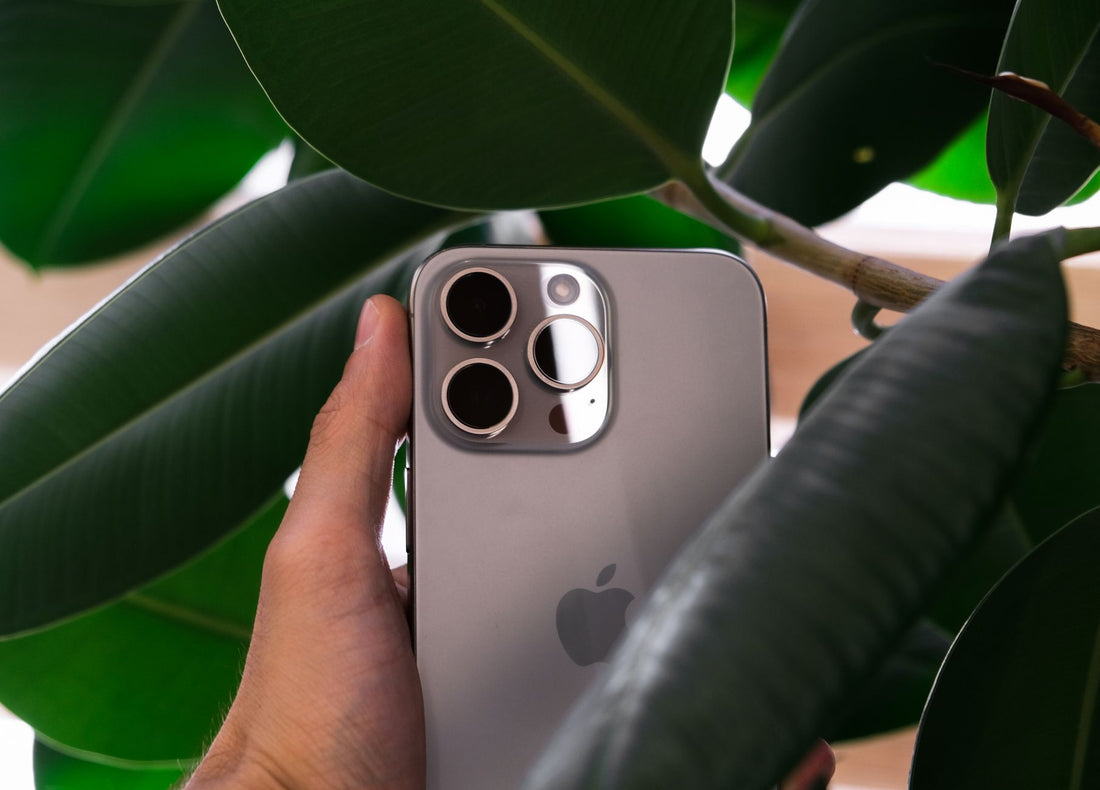
In short: the iPhone 15, 15 Plus, 15 Pro, and 15 Pro Max all have eSIM in all their versions, whether purchased in Spain or the United States. Activating an eSIM on the iPhone 15 takes a minute from Settings > Cellular Data with your carrier's QR code, and you can keep your Spanish line active simultaneously for calls.
Does the iPhone 15 have eSIM? All models, one by one
Yes, without exception. All four models in the iPhone 15 family—15, 15 Plus, 15 Pro, and 15 Pro Max—come with eSIM as standard. There isn't a variant that's left out or a "basic" model with less capacity: the chip and software that manage the eSIM are identical across the entire range, so the question of whether the iPhone 15 Pro has eSIM just like the regular model has a short answer: exactly the same.
An eSIM isn't a physical card you insert, but rather a digital profile that the phone stores on its own secure chip. It's installed by scanning a QR code or tapping a link, and once it's in, it works like any other line: it receives coverage, data, and, if the carrier allows it, calls. If you want the concept explained from scratch before delving into the iPhone 15, the guide on how to install an eSIM will be helpful.

iPhone 15 from Spain, Europe, or the US: what changes
Here's the nuance that causes the most confusion: not all iPhone 15s in the world are physically identical inside. Models sold in Spain and the rest of Europe retain the physical SIM card tray in addition to the eSIM. Those sold in the United States, however, completely forego that tray: they are eSIM-only, with no visible slot on the side of the phone.
This leads to a very specific search pattern: people who buy or inherit a US iPhone 15 and desperately search for the SIM slot, convinced the phone is faulty. It's not. It's an Apple design decision for that market, and it means that if your iPhone 15 comes from there, the eSIM ceases to be a convenient option and becomes the only possible way to have data or a voice line.
| iPhone 15 purchased in | Physical SIM tray | eSIM | Can you use a travel eSIM? |
|---|---|---|---|
| Spain / rest of Europe | Yes | Yes | Yes, without touching your physical SIM |
| United States | No | Yes (mandatory) | Yes, it's your only possible line |
| United Kingdom | Yes | Yes | Yes, without touching your physical SIM |
For the traveler, in practice, this difference matters little: in both cases, the eSIM installs and works the same. The only change is whether you also retain the possibility of inserting a physical card when you need it. If you have doubts about whether your specific device supports this system—because it's not always obvious at a glance—a physical international chip is still the classic alternative; you can compare both options in international chip vs. eSIM.
How to activate eSIM on iPhone 15 step by step
Activation requires neither a carrier PIN nor a trip to a store: it's done entirely from the phone's settings and, with good Wi-Fi, takes less than a minute.
- Open Settings > Cellular Data (or Settings > Mobile Data depending on your language) and tap "Add eSIM."
- Scan the QR code sent by your provider, or paste the installation link if provided that way.
- Label the new line—"Travel," "Japan," whatever—so you don't confuse it with your usual number in the selector.
- Choose the eSIM as the default data line and leave your Spanish line for calls.
- Activate data roaming only for the eSIM line when you land at your destination, not before.
One detail often overlooked: install the profile at home, using your Wi-Fi, but don't activate it as a data line until you land. Many data plans start counting hours or days from the first connection to a network in the country, not from the QR installation. If you activate it at the departure airport just to test if it works, you might be burning hours of your plan without having even left Spain yet.

How many eSIMs does the iPhone 15 support and how to manage them
The iPhone 15 can store several eSIM profiles simultaneously, although only two lines can be active and functioning at the same time (typically your voice number and a data line). This is the same logic as dual SIM in previous generations, but without the physical limitation of only being able to carry two cards.
For those who travel several times a year, this is truly convenient: you can keep an eSIM from a previous trip to South Korea saved, another from a weekend in the United States, and add the one for your next destination. You simply activate the relevant one without reinstalling anything. However, over time, expired profiles accumulate that are no longer useful except to clutter the line selector when you're in a hurry. Before a trip, go to Settings > Cellular Data and delete any plans you've completely used up.
Useful tip: if your next destination is one that raises the most coverage doubts due to its geography—mountainous areas, archipelagos, hiking trails—check what type of network you'll have beforehand; on trekking routes, the signal changes a lot depending on the section, and it's good to know this before relying on Google Maps in real time.
Your Spanish line and a data eSIM, simultaneously
This, for me, is the real reason it's worth taking advantage of the iPhone 15's eSIM when traveling: dual SIM allows you to use two lines simultaneously without sacrificing either. You keep your Spanish card active to receive calls and bank verification SMS, and you use the eSIM of your destination country solely for browsing.
The configuration is in the usual place, Settings > Cellular Data: you select the travel eSIM as the data line and leave your Spanish number marked only for "Voice and SMS." WhatsApp continues to work exactly the same because it's linked to your phone number, not to the physical card or the profile you use to connect to the internet—this is one of the myths that worries first-timers the most, and it has no basis.
The step most people forget: deactivate data roaming for the Spanish line. If you leave it on "just in case," the iPhone might try to use it in the background for certain tasks and generate roaming charges even if your primary browsing line is the eSIM. Turn off that roaming and only leave the eSIM's roaming activated.
What almost no one tells you about the iPhone 15 eSIM
Beyond the instruction manual, there are details that are only learned through using it at the destination:
- The network name doesn't always match the operator you expected. Many travel eSIMs operate on local networks through roaming agreements with several operators simultaneously, so it's normal to see a network name different from what the plan advertised. As long as data coverage appears, it's exactly what's expected.
- If you travel to the United States with an iPhone purchased in Spain, your physical tray is still there even if you don't use it: you can carry your Spanish SIM physically stored as a backup and the data eSIM active, something a user with an iPhone purchased in the US cannot do because they don't have a tray.
- The automatic network selector can get "stuck" on a weak operator. If you notice that the speed is worse than normal right after landing, go to Settings > Cellular Data > Network and force a manual selection of another available operator with the same agreement.
- Restarting the phone solves more eSIM failures than seems reasonable. Before contacting support or giving up on the plan, simply turning it off and on again resolves many of the "no service" issues that appear right after landing, because it forces the phone to re-register on the network.
- Save the installation email, not just the QR on the screen. If you need to reinstall the profile on another device or the QR is no longer valid after the first scan (common for security reasons), the manual link in the email usually still serves as a backup.
If you're also concerned about what your local operator sees or want an extra layer of privacy while browsing away from home—for example, when connecting to hotel or airport Wi-Fi—it's wise to take extra precautions with your connection, especially if you're going to do banking transactions from abroad.
When you do NOT need to buy an eSIM
Selling eSIMs is our business, but it would be dishonest not to say when it's not worth it. If you travel within the European Union with a Spanish contract line or a plan with included roaming, your own SIM already works at no additional cost thanks to roaming regulations within the European space: you don't need anything else. You can review exactly what is covered and what is not in what is data roaming before spending on a plan you don't need.
It also makes no sense to buy an eSIM for a short stopover at an airport with free Wi-Fi, or for a day trip to a neighboring country where your operator already includes roaming by agreement. The data eSIM clearly wins when you leave the roaming-included zone of your plan—outside the EU, or inside but with a plan that doesn't cover it—or when you're going to depend on data for several days for work, navigating with maps, or video calls. To fully understand when each option is better than your own operator's roaming, the comparison of eSIM vs. roaming answers most questions case by case.
And if the trip is long and you want to stretch your contracted data, there are simple tricks—downloading offline maps, limiting background app updates, lowering streaming quality—that make a real difference in how long your plan lasts; you can find them detailed in how to save data with an eSIM on a trip.
Frequently asked questions
Does the iPhone 15 Pro have eSIM just like the regular iPhone 15?
Yes, exactly the same. All four models in the range—iPhone 15, 15 Plus, 15 Pro, and 15 Pro Max—support eSIM with the same capabilities: same activation process, same number of storable profiles, and the same dual SIM functionality. There is no difference between the standard model and the Pro in this aspect.
How do I know if my iPhone 15 supports eSIM or only has a physical SIM?
All iPhone 15s support eSIM without exception; the real question is usually whether they also have a physical tray. Go to Settings > General > About: if an EID identifier appears in the serial number section, your phone supports eSIM (all iPhone 15s have it). To see if it also has a physical tray, simply look at the side of the device itself.
Why doesn't my iPhone 15 have a SIM card slot?
Almost always because it's a unit purchased in the United States, where Apple sells the iPhone 15 exclusively with eSIM, without a physical tray. Models sold in Spain and the rest of Europe do retain the slot in addition to the eSIM. If yours doesn't have a slot, it's not a malfunction: you'll simply have to use eSIM for any line, including your main one.
Can I have my Spanish number and a data eSIM active at the same time?
Yes, this is the great practical advantage of the iPhone 15 for travel. Thanks to dual SIM, you keep your Spanish card active for calls and SMS while using the eSIM of the destination country only for data. You just need to select the eSIM as the data line in Settings and activate its roaming upon arrival, leaving your Spanish line's roaming deactivated.
Can an eSIM be installed on the iPhone 15 without scanning the QR code?
Yes, with updated iOS, many providers allow eSIM installation by tapping a direct link from the confirmation email or SMS itself, without needing a camera or QR. This is especially useful when you receive the plan on the same mobile you're going to install it on. If your provider only provides a QR, you can also open the image on another screen—a computer or tablet—and scan it from there.
When should I activate the iPhone 15 eSIM, before traveling or upon arrival?
Install the profile at home at your leisure, using your Wi-Fi, but don't activate it as a data line until you reach your destination. Most plans start counting consumption from the first connection to a network in the country, so activating it before leaving can make you lose hours or days of your plan unnecessarily.
How many eSIMs can I store on the iPhone 15 and how many can I use at once?
You can store several eSIM profiles on the phone, but only two lines—also counting the physical one if you have it—can be active and functioning at the same time. For frequent travelers, this means saving profiles for different destinations and activating only the one needed at any given time, without having to reinstall anything each time.
Conclusion
The iPhone 15 is designed for travel with eSIM without giving anything up: it supports dual SIM, stores several profiles at once, and activates in just over a minute from the phone's settings. Keep your Spanish number for calls and WhatsApp, and use a different data eSIM in each destination to avoid relying on your carrier's roaming. If your next trip is within Europe, check out the eSIM for Europe; if you cross the Atlantic, the eSIM for the United States keeps you connected from the moment you land; and if you need an additional data line to move around Spain, there are also eSIMs for Spain.