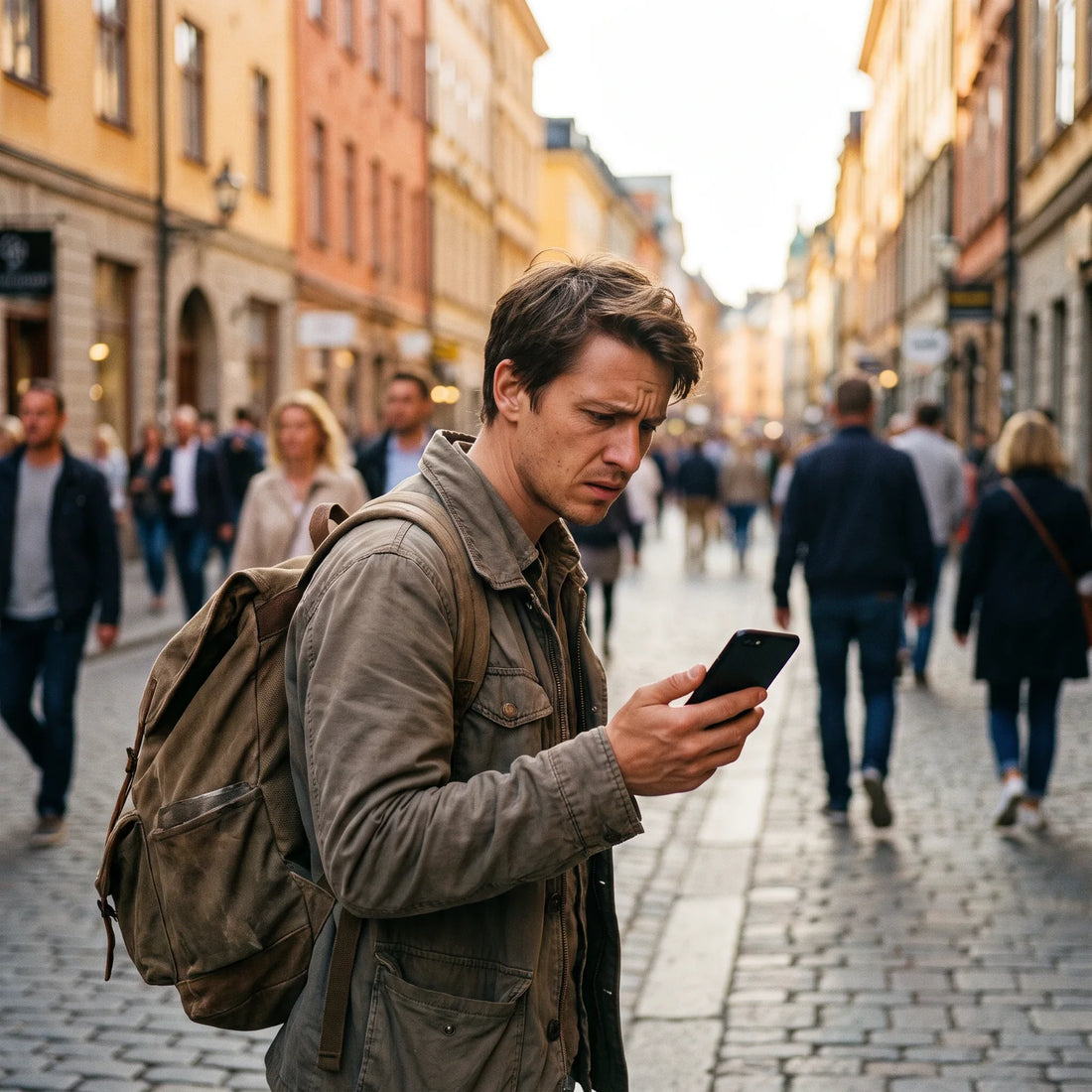
What to do right now when your hotspot isn't working
First, check that your data plan is active and has credit; second, turn airplane mode on and off; third, reset Network Settings from Settings > General > Transfer or Reset iPhone. These three steps solve most cases in under two minutes, without losing photos or saved passwords.
If you've tried that and it still doesn't work, keep reading: below are all remaining causes, ordered from most common to rarest, with the exact solution for each. You don't need to check them all: go straight to the one that sounds like your case.
Check your data plan first
Personal Hotspot (as it's called in the Settings menu) only shares the data your iPhone already has. If your plan ran out of gigabytes, if your carrier suspended your line for non-payment, or if you're outside your country without active roaming, the hotspot will appear on but won't provide internet to anyone. This is the most common and easiest cause to rule out.
To check without using the hotspot: open Safari or any app directly on your iPhone using mobile data (without Wi-Fi). If it also doesn't load there, the problem isn't the hotspot; it's that the iPhone itself has no internet. In that case, no hotspot setting will fix it until you resolve the data plan issue.
| Likely cause | How to detect in 10 seconds | What to do |
|---|---|---|
| No data or plan exhausted | Safari also doesn't load using mobile data directly on the iPhone | Check balance/gigabytes with your carrier or top up your plan |
| Airplane mode or Wi-Fi incorrectly crossed | The Personal Hotspot switch is green, but no one sees it in the network list | Turn airplane mode off and on, then re-enable the hotspot |
| Damaged network setting | The hotspot worked yesterday and doesn't appear today, even though data works | Reset Network Settings (does not erase photos or apps) |
| APN misconfigured | iPhone data works intermittently or only with known Wi-Fi | Verify the APN in Settings > Mobile Data > Mobile Data Network |
| Password or active restrictions | The other device sees the network but asks for a password you don't recognize | Change the hotspot password from Settings |
| Data roaming blocked | You are outside your country and the hotspot never activated | Activate Data Roaming or use a local eSIM |
| Battery saver turns off the network | The hotspot disconnects if no other device uses it for a few minutes | Keep the Settings screen open or connect via Bluetooth first |
Reset Network Settings (solves most cases)
If your data plan is fine and the hotspot still doesn't appear or connect, the next step is to reset network settings. Go to Settings > General > Transfer or Reset iPhone > Reset > Reset Network Settings. This erases saved Wi-Fi passwords and paired networks, but does not affect photos, apps, or contacts.
This step fixes most cases where the hotspot "disappeared" from the Settings menu overnight without you changing anything, as it's usually due to a conflict between the carrier's network profile and a recent iOS update.
A network reset is not the same as a factory reset: it only erases saved Wi-Fi passwords and paired Bluetooth connections, never your photos, messages, or apps.
After resetting, your iPhone will ask for your home Wi-Fi password again, which is normal. Go back to Settings > Personal Hotspot and confirm the switch is green before trying to connect the other device.
Why your iPhone's Personal Hotspot no longer works
When the hotspot used to work but suddenly stops appearing in Settings or in the other device's network list, it's almost always one of these three reasons: an iOS update that reset the carrier profile, a plan or line change that your carrier didn't sync correctly with the iPhone, or the eSIM/physical SIM losing the data profile due to a recent network change (for example, if you just landed in another country).
If Personal Hotspot doesn't appear directly in the Settings menu (even after searching), the problem is almost never with the iPhone: it's that the line contracted with your carrier doesn't have hotspot enabled in the plan. Some prepaid or limited data plans restrict tethering to other devices, and it needs to be activated separately with the carrier.
If you've traveled recently and the problem started just upon arrival, it's a different and more specific symptom: check our guide on what to do when the connection doesn't work upon landing, which covers the case of the data signal not appearing right after getting off the plane.

Check the Access Point Name (APN)
The APN is the gateway your iPhone uses to connect to your carrier's data network. If it's misspelled or empty, mobile data will fail intermittently, and the hotspot will inherit the same problem because it shares the same connection. You check it in Settings > Mobile Data > Mobile Data Network.
The correct APN is provided by your carrier, not Apple, so if you've ever changed it manually (for example, to use a SIM from another country) and now data isn't working well, that's a direct suspect. Leaving the APN blank often makes the iPhone detect it automatically again.
With an eSIM, this rarely fails because the profile comes pre-configured by the provider: it's one of the reasons why it's worth understanding what an eSIM is before relying on a shared hotspot between several devices during a trip.
Why your iPhone won't let you share internet
If the Personal Hotspot switch doesn't move or turns off by itself a few seconds after you try to activate it, check three things in order: that airplane mode is off, that you have mobile data activated (not just Wi-Fi), and that there isn't a Screen Time restriction blocking changes to the hotspot, which is common on family or shared iPhones.
Another common cause: if the iPhone is linked to a corporate or educational network with a Device Management Profile (MDM) installed, the administrator may have intentionally blocked the hotspot. In that case, no setting on the phone will fix it; you need to request the change from whoever manages the profile.
And if the problem is that other devices can't connect even though the switch is green, they're probably using an old saved password. Change the password from Settings > Personal Hotspot > Wi-Fi Password and try again from the other device as if it were the first time.
The hotspot connects but the other device has no internet
This case is different from "it doesn't appear": here, the other device does connect to the iPhone's network, even showing the full Wi-Fi icon, but no page loads. This almost always means the iPhone has voice signal but no data, which is typical in weak coverage areas where the phone drops to a 2G/3G network that no longer supports data at sufficient speed.
It also happens when you are abroad and voice roaming works (which is why calls come through) but data roaming is deactivated or not included in your plan. Check Settings > Mobile Data > Options > Data Roaming.
If you're going to rely on the hotspot for several consecutive days during a trip, it's worth comparing whether tethering to your home plan (with its roaming cost) or a local eSIM for the country you're visiting is more suitable, something we explain in detail in eSIM vs. traditional roaming.
Why you can't share internet on your iPhone while traveling
Outside your country, the hotspot depends on data roaming being active and your plan including it without restrictions. Many prepaid plans and some capped data plans specifically block tethering to other devices while you're roaming, even if the iPhone's normal data works. This is a plan limitation, not a technical phone fault.
If you notice that your iPhone has data but the hotspot isn't sharing anything only when you're outside your country, confirm with your carrier if your plan includes tethering with international roaming. If it doesn't, no network reset will unlock it because the restriction lies with the network, not the phone.
This is where many travelers end up overspending without realizing it, because the roaming of the original plan is usually charged per megabyte or per day quite expensively compared to a data eSIM purchased for that specific destination, activated only for the duration of the trip.

The hotspot disconnects every few minutes
There's an iOS behavior that almost no one knows about, which explains a good part of the "it disconnects by itself" issues: if no device is actively using the hotspot for a few minutes and you've exited the Settings screen, the iPhone stops broadcasting the Wi-Fi network to save battery, even if the Personal Hotspot switch is still green. The network literally disappears from the other device's list, but it reappears as soon as you open Settings > Personal Hotspot again or connect via Bluetooth first (which does keep the link active in the background).
If you know you'll be relying on the hotspot for a long time, two tricks help: keep the Settings screen open on the iPhone, or pair via Bluetooth first before searching for the Wi-Fi network from the other device. With Bluetooth active, the hotspot won't turn off even if you minimize the screen.
Other causes of repeated disconnections: Low Power Mode being active (which limits background processes, including the hotspot), being at the edge of data coverage moving between towers, or having too many devices connected at once, something we review in more detail in common problems when sharing mobile data.
| iPhone Personal Hotspot | International data eSIM | |
|---|---|---|
| Where data comes from | From your home carrier's plan, with roaming costs if you're outside the country | From a local plan purchased for the destination, without roaming |
| Depends on | Your plan allowing tethering and active data roaming | Coverage of the local carrier using the eSIM in that country |
| Battery consumption | High, a phone shares signal with others while using its own | Each device uses its own data connection |
| How many devices at once | Limited by the iPhone and carrier plan (usually 3-5) | One per installed eSIM; each device has its own |
| What happens if the iPhone runs out of battery | All connected devices lose internet | Does not affect other devices |
When the problem is with the carrier and not the iPhone
If you've checked your data plan, reset Network Settings, confirmed the APN and data roaming, and the hotspot still isn't providing internet, the problem is most likely on the carrier's side: a temporary outage, a restriction in your plan that wasn't communicated to you, or a roaming block in that particular country. At that point, no additional adjustment on the iPhone will fix it.
This is especially common when traveling: you depend on a single carrier for everything (calls, data, and now also your other devices' hotspot), and if that carrier has poor coverage in your area, the whole package goes down at once. Having an independent data eSIM, activated only for your current destination, separates that risk: if your home plan's hotspot fails, you still have your own data on the device using the eSIM, without relying on tethering.
Before installing one, confirm that your model is compatible: most iPhones from the XS onwards are, but it's advisable to check the complete list in eSIM compatible phones. Installation takes a few minutes and is explained step-by-step in how to install an eSIM.
If what you need is data coverage for a trip that has already started or is about to start, you can check the available plans by destination in international eSIM. Activation takes about 1 minute, and 24/7 support is available by email and WhatsApp in all languages, in case anything is unclear during installation.
Frequently asked questions
Why won't my iPhone let me activate Personal Hotspot?
Almost always because your carrier plan doesn't include tethering to other devices, or because there's a Screen Time restriction or a management profile (MDM) blocking it. Confirm with your carrier if your plan allows it before trying further adjustments.
Does the hotspot consume more battery than normal data usage?
Yes, significantly more, because the iPhone keeps its own data connection active and also broadcasts a Wi-Fi network for other devices at the same time. If you're going to use it for hours, it's advisable to keep it connected to power.
How many devices can I connect to my iPhone's hotspot at once?
It depends on the model and the carrier, but it's usually between 3 and 5 simultaneous devices via Wi-Fi. Connecting too many devices is often what causes intermittent disconnections.
Why does the hotspot work at home but not when I travel?
Because outside your country, tethering depends on data roaming being active (Settings > Mobile Data > Options > Data Roaming) and your plan allowing it in that specific destination. It's common for a plan to cover normal data roaming but not tethering to other devices.
Does resetting network settings delete my photos or apps?
No. Resetting network settings only deletes saved Wi-Fi passwords and paired Bluetooth devices. Your photos, messages, apps, and contacts remain intact.
Can I use my iPhone's hotspot and an eSIM at the same time?
Yes, the iPhone allows you to have both the physical line and an eSIM active at the same time, and you can even share the hotspot from your preferred line. Many travelers use the eSIM for their own data and leave the original line only for calls and messages.
Why does my iPhone show the hotspot connected but without internet access?
Because the iPhone has a voice signal or a weak network (2G/3G) but not enough data to browse. Try opening a page directly on the iPhone with mobile data: if it also doesn't load there, the problem is with coverage or the plan, not the hotspot itself.
Do I need Wi-Fi to use the iPhone hotspot?
No, Personal Hotspot shares the iPhone's own cellular data, not an external Wi-Fi network. You only need the iPhone to have an active data signal.
In summary
If your hotspot isn't working, follow this order: check your data plan, reset network settings, confirm the APN, and if you're traveling, check data roaming. This resolves the vast majority of cases in a couple of minutes, without the need to factory reset your entire iPhone.
When the problem is clearly on the carrier's side (blocked roaming, plan without tethering, poor coverage at the destination), it makes sense to stop fighting with settings and give each device its own data connection. Check out the international eSIM plans available by destination, with activation in approximately 1 minute, coverage in over 200 destinations, and 24/7 support in all languages via email and WhatsApp if you need help installing it. If you want to first understand all the differences compared to a physical SIM, the complete comparison between eSIM and physical SIM is a good starting point.